
PRESTO Device Screens
When you tap your PRESTO card or a Contactless credit or debit card on a PRESTO device, the device will show a message to let you know the tap was successful. There may be times when your tap is declined and a different screen may appear that explains why. Below are the most common screens you might see when you tap your card.
Idle Screens

This screen means the device is ready to go. The device shows the Transit Agency you are riding on. Just tap your card below.

This screen means the device is ready to go. The device shows the Transit Agency you are riding on. Just tap your card below.
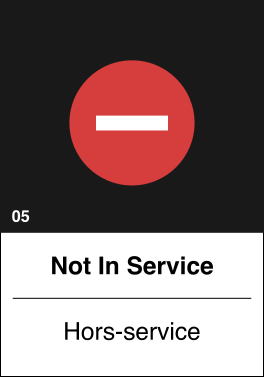
This screen means that the device you are trying to tap on is out of service.
Station Devices Alternative Modes
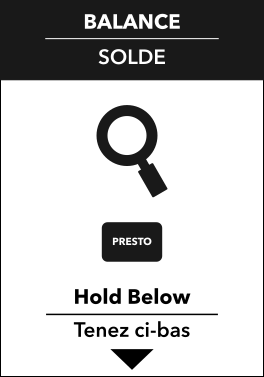
This screen means you are able to check your card balance and details on a GO or UP Express station device.
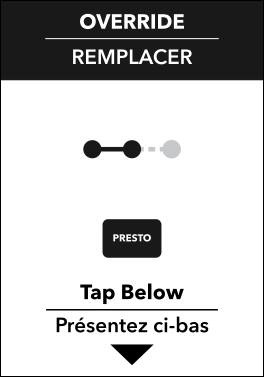
This screen means you are able to override your GO Default trip when you are traveling to a different destination on a GO station device.
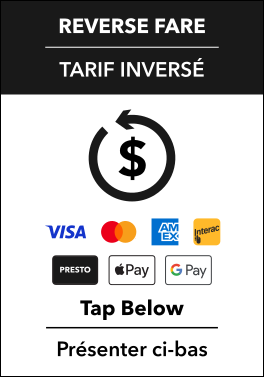
This screen means you are able to reverse your fare on a GO or UP Express station device.